开发板配置nfs踩坑
配置好nfs服务器路径等之后重启nfs服务的时候可能无法重启遇到错误

- 此时需要执行命令
sudo service rpcbind start - 然后再执行
sudo /etc/init.d/nfs-kernel-server restart从Uboot启动Linux可能ping不通WSL的问题
- 开发板Linux端使用命令
ifconfig eth0 172.20.98.200 netmask 255.255.240.0,配置ip地址和子网掩码,配置到与WSL再同一个子网之下即可ping通Uboot可以通过tftp下载内核和设备树但是无法用nfs下载文件系统的问题
- 使用WSL安装旧版(比如18.04)的Ubuntu
- 将Ubuntu移动到D盘(假如C盘空间不足)参考链接
- 安装好之后安装完nfs服务之后,将服务的配置文件
/etc/default/nfs-kernel-server文件进行修改如下# Number of servers to start up
RPCNFSDCOUNT="-V 2 8"
# Runtime priority of server (see nice(1))
RPCNFSDPRIORITY=0
# Options for rpc.mountd.
# If you have a port-based firewall, you might want to set up
# a fixed port here using the --port option. For more information,
# see rpc.mountd(8) or http://wiki.debian.org/SecuringNFS
# To disable NFSv4 on the server, specify '--no-nfs-version 4' here
RPCMOUNTDOPTS="-V 2 --manage-gids"
# Do you want to start the svcgssd daemon? It is only required for Kerberos
# exports. Valid alternatives are "yes" and "no"; the default is "no".
NEED_SVCGSSD=""
# Options for rpc.svcgssd.
RPCSVCGSSDOPTS="--nfs-version 2,3,4 --debug --syslog"
RPCNFSDOPTS="--nfs-version 2,3,4 --debug --syslog" - 然后重启WSL虚拟机,然后重启tftp、xinetd、rpcbind、nfs服务**
- 注意重启之后WSL所处的网段、子网掩码、网关等都可能改变,,所以一定要使用WSL的设置WSL系统的IP地址到同一个网段下,假如重启之后开发板ping不通虚拟机的话还需要重新按照之前的博客配置虚拟机网络与开发板的桥接
ifconfig <网卡号(比如eth0)> <指定的IP地址>
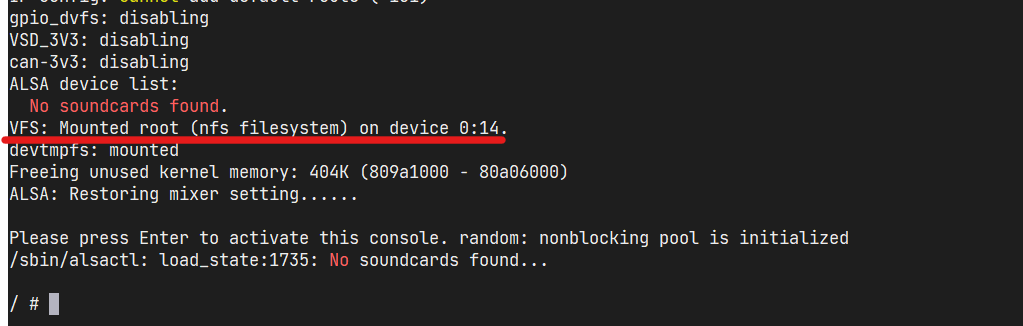
- 成功结果如图