0%

下载各类使用的csl文件

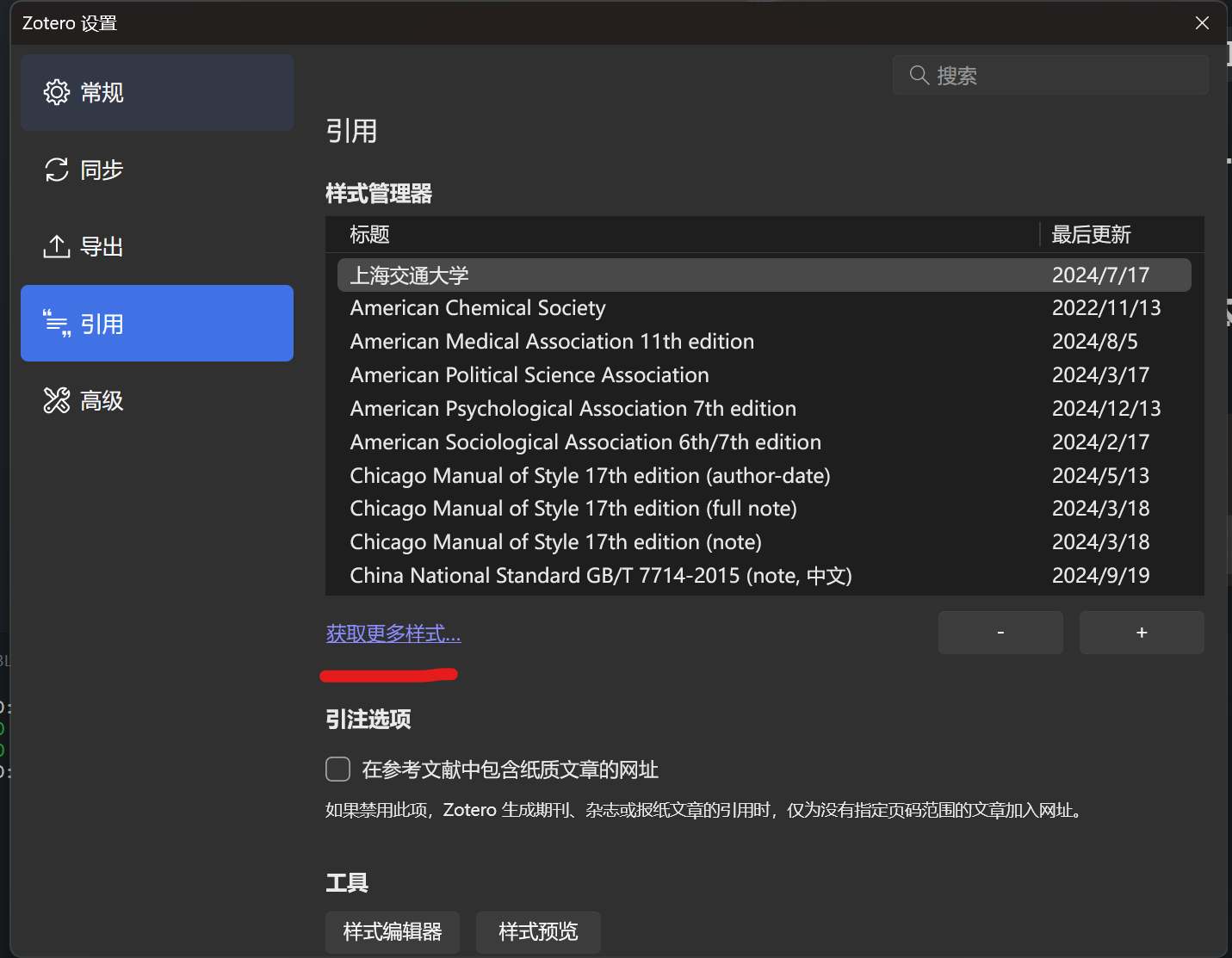
  • 在zotero的设置->引用->获取更多样式位置搜索
    • picture 1
  • 或者在网站搜索
  • 然后导入

    撰写javascript脚本批量修改

  • 大部分样式是根据文献的”语言”属性设置文献的中英文,从而决定使用et al还是等作为省略标记。
  • 因此需要批量对文献的语言属性做出设置,中文的设置为zh-CN,英文的设置为en-US
  • 下面代码的判断方式是作者名称中是否含有汉字,含有认为语言是中文,否则是英文
  • 全选所有文件
    • picture 0
    • 在这个目录下按下Ctrl+A
  • 打开工具→开发者→Run JavaScript
    // 检查作者姓名中是否包含中文字符的函数
    function containsChinese(str) {
    const regex = /[\u4e00-\u9fa5]/; // 中文字符的 Unicode 范围
    return regex.test(str);
    }

    // 替换后的语言
    const newLanguageCN = "zh-CN";
    const newLanguageEN = "en-US";

    // 以下内容无需修改
    zoteroPane = Zotero.getActiveZoteroPane();
    items = zoteroPane.getSelectedItems();
    var cnCount = 0; // 中文条目计数
    var enCount = 0; // 英文条目计数
    var rn = 0; // 替换条目个数

    for (item of items) {
    var la = item.getField("language");

    // 获取文章的作者信息
    var authors = item.getCreators();
    var hasChineseName = false;

    // 检查作者是否包含中文名字
    for (const author of authors) {
    if (containsChinese(author.lastName) || containsChinese(author.firstName)) {
    hasChineseName = true;
    break;
    }
    }

    // 根据是否包含中文名字决定语言设置
    if (hasChineseName) {
    item.setField("language", newLanguageCN); // 中文名字则设置为 zh-CN
    cnCount += 1; // 中文条目计数
    } else {
    item.setField("language", newLanguageEN); // 否则设置为 en-US
    enCount += 1; // 英文条目计数
    }
    rn += 1;
    await item.saveTx();

    }

    // 输出中文和英文条目的数量
    return `已替换的条目总数: ${rn}。其中中文条目: ${cnCount},英文条目: ${enCount}`;

指针、常量指针和指针常量

  • 常量指针(Pointer to const):指针指向的值是常量,不能修改该值,但指针本身可以改变。
const int* p = &x;  // p 是指向常量整数的指针
*p = 30; // 错误,不能通过 p 修改值
p = &y; // 可以修改指针 p 指向不同的地址
  • 常量引用(Reference to const):引用的对象是常量,不能通过引用修改该对象,但引用本身不能改变(引用无法重新绑定到其他对象)。
const int& ref = x;  // ref 是 x 的常量引用
ref = 30; // 错误,不能通过引用修改 x 的值
  • 常量指针(Const pointer):指针本身是常量,指针不能改变指向其他地址,但指向的值可以修改。
int* const p = &x;  // p 是常量指针,指向 int 类型
*p = 30; // 可以修改 *p 指向的值
p = &y; // 错误,不能修改指针 p 的指向
  • 常量指针指向常量(Const pointer to const):既不能通过指针修改指向的值,也不能改变指针的指向。
const int* const p = &x;  // p 是常量指针,指向常量整数
*p = 30; // 错误,不能通过 p 修改值
p = &y; // 错误,不能修改指针 p 的指向

auto和decltype

  • auto 是 C++11 引入的关键字,用于让编译器自动推断变量的类型。这样做可以减少冗长的类型声明,尤其在复杂类型(如迭代器)时非常有用。
  • 一次性使用auto声明多个变量的时候,不同变量的类型推导必须一致,包括常量特性
  • auto推断的类型一般不是引用类型,除非特殊声明
  • decltype 是 C++11 引入的,用来获取一个表达式的类型,通常用于推导复杂类型。decltype 可以在不执行表达式的情况下获取其类型。
  • decltype((x))推导出的类型是x的引用类型
  • autodecltype 一起使用时,decltype 获取的是表达式的类型,而 auto 则用于推断值类型
    int x = 10;
    decltype(x) y = 20; // y 的类型是 int

    auto z = x; // z 的类型是 int,自动推导
    decltype(auto) w = x; // w 的类型是 int,和 z 一样
  • 使用范围for循环的时候,如果想修改容器中的元素的内容的时候,需要显式的声明应用类型比如
    for(auto& c : s){}

    单独声明某个命名空间中的一些对象

  • 比如想在代码中使用std中的cin, cout等,可以这样写
    #include <iostream>
    using std::cin;
    using std::cout;
  • 如上操作,在使用的时候就不需要显式的给出作用域限定符了

C++使用C标准库

  • C++使用C标准库的时候,将库名前面加一个c,然后去掉结尾的.h,比如C语言的ctype.h库在C++中调用就会变成cctype

vector

  • vector初始化可以用花括号,比如
    vector<T> a{1, 2, 3, ...};
    // or
    vector<T> a={1, 2, 3, ...};

string

  • 支持使用.c_str()获取C风格的字符串const char*
  • 但是如果s的值被改变,返回的字符串可能失效

迭代器

  • vector的迭代器:vector<T>::iterator it;
  • string的迭代器: string::iterator it;
  • 类似地,常量迭代器(不可修改内容)就是const_iterator
  • 迭代器可以比大小,比如<, >等,实际上比较的是谁先谁后

const和constexpr

  • const是表示一个变量不可被修改,但是这个变量地值可能没有在编译的时候就被确定下来,可以是运行时确定的
  • constexpr要求一个值必须在编译阶段就可以被确定

数组

  • 数组的类型不能使用auto声明
  • 数组的大小可以不在方括号中声明,比如int a[] = {1, 2, 3};
  • 如果花括号中提供的元素不能覆盖掉数组的全部元素,则使用0(int类型)或者空字符串(string)等自动填充剩余的。
  • 数组不可以拷贝初始化,也不能直接对其赋值
  • int* ptrs[10]声明的是长度为10的int*指针数组
  • int (*array)[10]是一个指向含有10个元素数组的指针
  • int (&array)[10]是一个含有10个元素的int数组的引用
  • int& array[10]是不对的,不可以有成员为引用类型的数组
  • 执行类似于
    int a1[] = {1, 2};
    auto a2 a1;
  • 推导出来的a2是int*类型
  • 使用标准库得到类似容器迭代器的指针
    int ia[] = {1, 2, 3};
    int* beg = std::begin(ia);
    int* end = std::end(ia); // 尾后迭代器
  • 这个迭代器可以用来初始化对应类型的vector,比如vector<int> a(begin, end);

文件系统裁剪

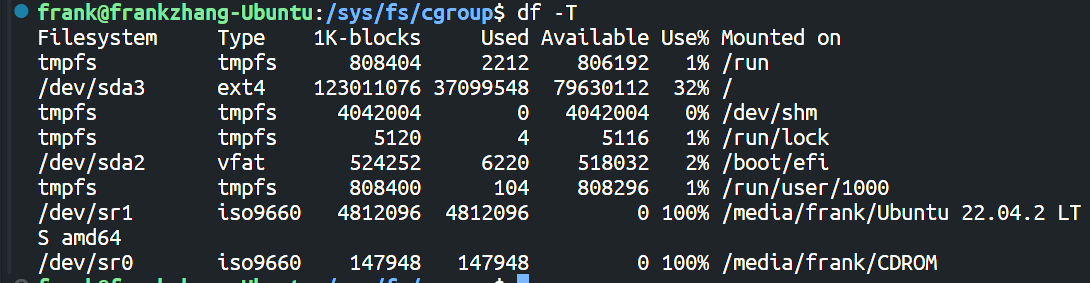
  • 查看自己使用的文件系统
  • 使用df -T命令
  • picture 0
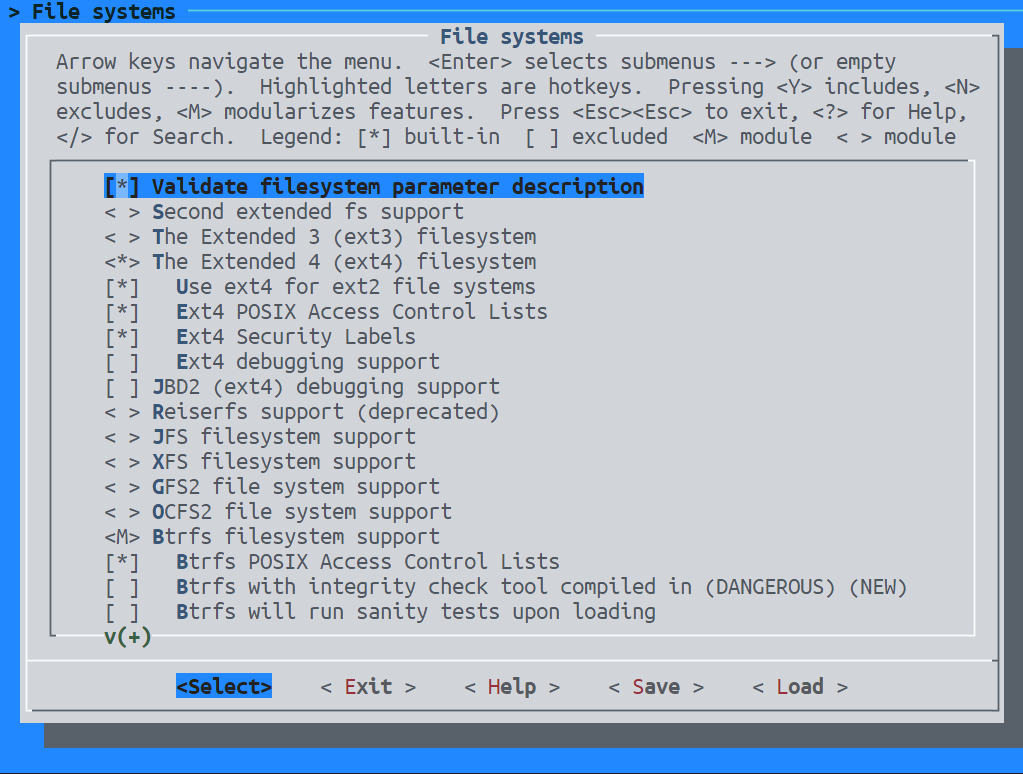
  • 在内核menuconfig中查看File system选项
    • picture 1
    • 禁用不需要的即可

设备驱动裁剪

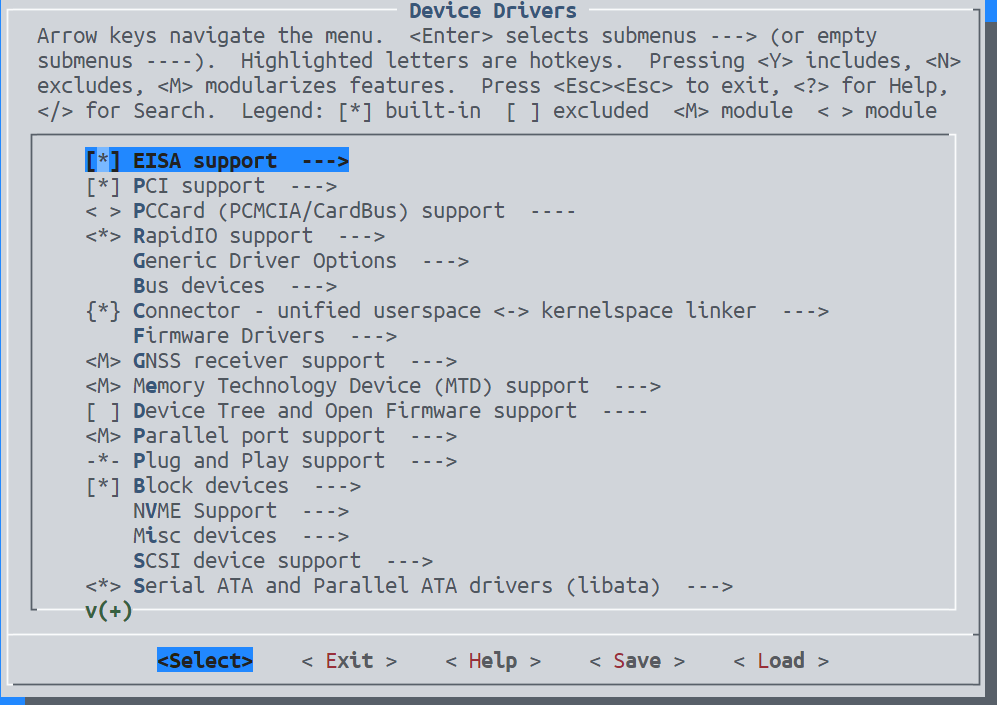
  • menuconfigDevice Drivers
  • picture 2

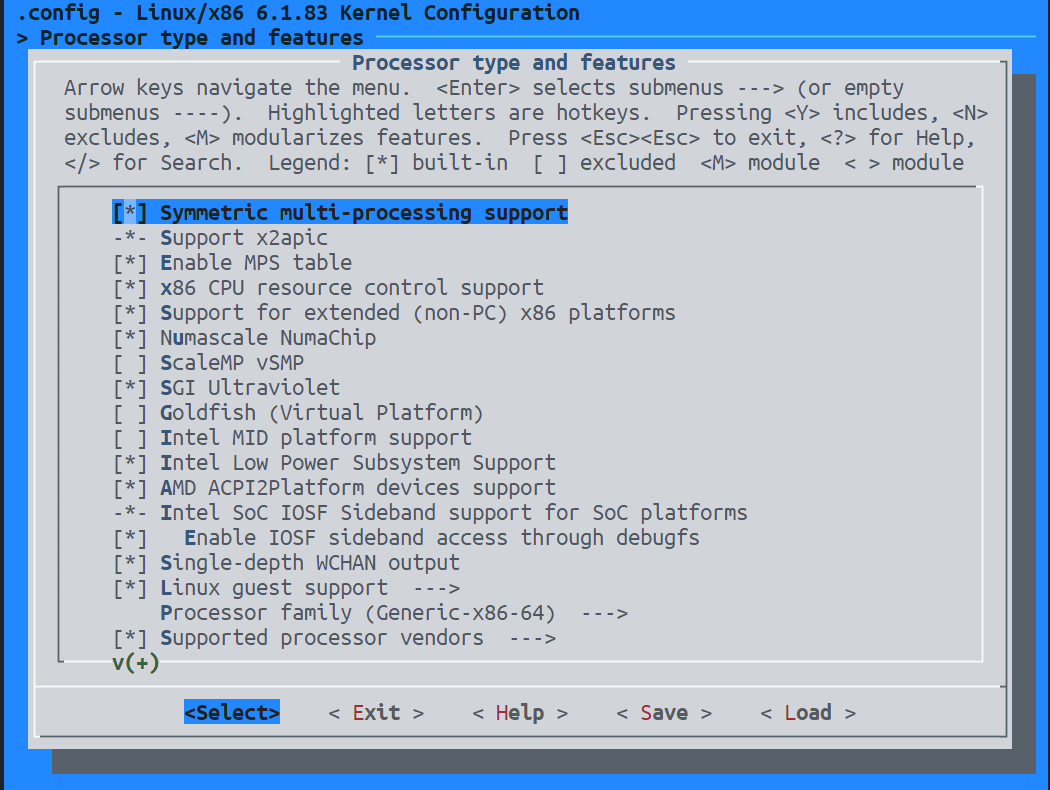
Processor type and features

  • 可以剪掉与自己处理器功能不匹配的部分
  • picture 3
  • 尝试
    CONFIG_ARM=n
    CONFIG_MIPS=n
    CONFIG_POWERPC=n
    # 其他架构同样禁用

使用进程组将特定的CPU留给特定的进程执行

  • 以上使用的是cgroup v1,V2比较难用

  • 安装cgroup工具

    sudo apt install cgroup-tools

    (可能需要)将计算机的Cgroup版本切换到v1

  • 检查当前计算机使用的cgroup配置

  • bashmount | grep cgroup

    • 如果你看到 cgroup2,说明你的系统使用的是 cgroups v2
    • 切换:
      • sudo nano /etc/default/grub
      • GRUB_CMDLINE_LINUX_DEFAULT="quiet splash"修改为GRUB_CMDLINE_LINUX_DEFAULT="systemd.unified_cgroup_hierarchy=0"
      • 更新grub并重启
      • sudo update-grub
      • sudo reboot
  • 给进程组分配适当的核心

    sudo cgcreate -g cpuset:/<专属CPU组名>
    sudo cgset -r cpuset.cpus="0,1" <专属CPU组名>
    sudo cgset -r cpuset.mems="0" <专属CPU组名>
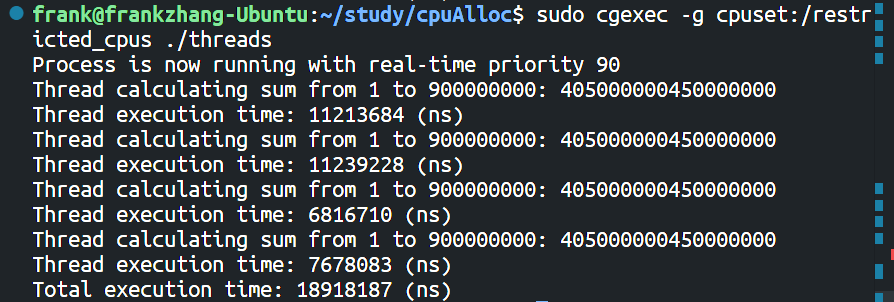
  • 使用在该CPU组下执行进程

    sudo cgexec -g cpuset:/<专属CPU组名> <command>
  • 结果

    • picture 1

    • picture 2

    • 可见,虽然进程开启了4个线程,但是只占用了两个CPU核心,而且进程是两个两个执行的

  • 创建额外的进程组

    sudo cgcreate -g cpuset:/<其他进程共享剩余CPU核心的组>
    # 将其他CPU分配给这个进程组
    sudo cgset -r cpuset.cpus="2-11" <其他进程共享剩余CPU核心的组>
    sudo cgset -r cpuset.mems="0" <其他进程共享剩余CPU核心的组>
  • 将系统剩余的进程划归这个进程组管理

    sudo cgclassify -g cpuset:/<其他进程共享剩余CPU核心的组> $(pgrep -u $(whoami))
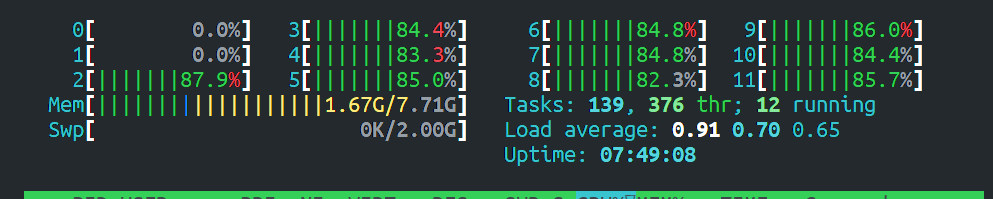
  • 此时直接使用命令行执行一个具有20个线程的程序

  • CPU使用情况如图

    • picture 3
    • 虽然其他核心都被占满仍然不够,但是不会影响上述两个核心
  • 也就是被上述进程独占的CPU不会受到任何影响

  • 关于sudo cgclassify -g cpuset:/<其他进程共享剩余CPU核心的组> $(pgrep -u $(whoami))的解释

    • $(pgrep -u $(whoami)) 将所有当前用户的进程 ID 列出来,并将这些进程传递给 cgclassify
    • 这样,cgclassify 会将这些进程添加到 <其他进程共享剩余CPU核心的组> cgroup 中。
    • 如果当前用户的所有进程都被分配到 <其他进程共享剩余CPU核心的组> cgroup 中,那么新创建的进程(由这些进程派生的子进程默认也会属于同一个 cgroup
    • 因此,执行上述命令之后,即使不显式的指定进程组创建的进程,也会在<其他进程共享剩余CPU核心的组>运行

      测试用的C语言程序

      #include <stdio.h>
      #include <pthread.h>
      #include <time.h>
      #include <stdlib.h>
      #include <sched.h>
      #include <unistd.h>
      #include <errno.h>
      #include <string.h>

      #define NUM_THREADS 20 // 线程数量
      #define ACC_RANGE 900000000

      typedef struct {
      long long start;
      long long end;
      long long sum;
      } ThreadData;

      // 计算时间差,以毫秒为单位
      long get_time_diff_ms(struct timespec start, struct timespec end) {
      return (end.tv_sec - start.tv_sec) * 1000 + (end.tv_nsec - start.tv_nsec) / 1000000;
      }

      long get_time_diff_ns(struct timespec start, struct timespec end) {
      return (end.tv_sec - start.tv_sec) * 1000000 + (end.tv_nsec - start.tv_nsec) / 1000;
      }

      // 设置进程为实时进程的函数
      int set_realtime(int priority) {
      struct sched_param param;

      // 实时优先级范围通常为 1 到 99,99 为最高优先级
      if (priority < 1 || priority > 99) {
      fprintf(stderr, "Priority must be between 1 and 99.\n");
      return -1;
      }

      // 设置调度参数的优先级
      param.sched_priority = priority;

      // 将进程设置为 SCHED_FIFO 调度策略
      if (sched_setscheduler(0, SCHED_FIFO, &param) == -1) {
      fprintf(stderr, "Failed to set realtime priority: %s\n", strerror(errno));
      return -1;
      }

      printf("Process is now running with real-time priority %d\n", priority);
      return 0;
      }

      // 累加函数,计算从 start 到 end 的累加和
      void* accumulateRange(void* arg) {
      ThreadData* data = (ThreadData*)arg;
      struct timespec startTime, endTime;
      // 记录开始时间
      clock_gettime(CLOCK_MONOTONIC, &startTime);
      data->sum = 0;
      for (long long i = data->start; i <= data->end; ++i) {
      data->sum += i;
      }
      printf("Thread calculating sum from %lld to %lld: %lld\n", data->start, data->end, data->sum);
      // 记录结束时间
      clock_gettime(CLOCK_MONOTONIC, &endTime);
      long elapsedTime = get_time_diff_ns(startTime, endTime);
      printf("Thread execution time: %ld (ns)\n", elapsedTime);
      pthread_exit(NULL);
      }

      int main() {
      long long rangeStart = 1; // 累加范围起始值
      long long rangeEnd = ACC_RANGE; // 累加范围终止值
      // int rangePerThread = (rangeEnd - rangeStart + 1) / NUM_THREADS;
      set_realtime(90);
      pthread_t threads[NUM_THREADS];
      ThreadData threadData[NUM_THREADS];

      struct timespec startTime, endTime;

      // 记录开始时间
      clock_gettime(CLOCK_MONOTONIC, &startTime);

      // 创建线程并分配累加范围
      for (int i = 0; i < NUM_THREADS; ++i) {
      threadData[i].start = rangeStart;
      threadData[i].end = rangeEnd;

      pthread_create(&threads[i], NULL, accumulateRange, (void*)&threadData[i]);
      }

      // 等待所有线程完成,并汇总结果
      long long totalSum = 0;
      for (int i = 0; i < NUM_THREADS; ++i) {
      pthread_join(threads[i], NULL);
      // totalSum += threadData[i].sum;
      }

      // 记录结束时间
      clock_gettime(CLOCK_MONOTONIC, &endTime);

      // 计算并输出总运行时间
      // long elapsedTime = get_time_diff_ms(startTime, endTime);
      // printf("Total sum from %d to %d: %d\n", rangeStart, rangeEnd, totalSum);
      // printf("Total execution time: %ld (ms)\n", elapsedTime);

      long elapsedTime = get_time_diff_ns(startTime, endTime);
      // printf("Total sum from %lld to %lld: %lld\n", rangeStart, rangeEnd, totalSum);
      printf("Total execution time: %ld (ns)\n", elapsedTime);

      return 0;
      }

      如何删除进程组cgroup

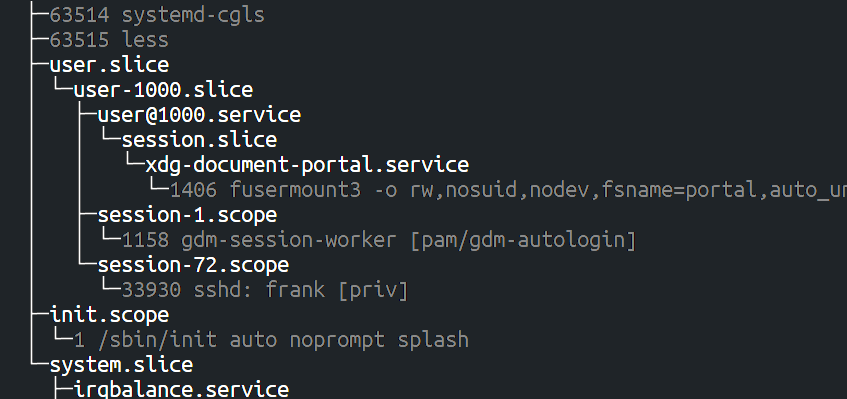
  • 查看当前的进程组结构systemd-cgls

    • picture 4
  • 查看进程组中所有进程

  • cat /sys/fs/cgroup/<group name>/cgroup.procs

  • 将所有进程移回根组之中sudo cgclassify -g cpuset:/ $(cat /sys/fs/cgroup/<group name>/cgroup.procs

  • 然后执行cat /sys/fs/cgroup/<group name>/cgroup.procs发现没有输出,证明当前组没有还在执行的进程了

  • 执行sudo rmdir /sys/fs/cgroup/<group name>删除对应的进程组

  • 然后查看ls /sys/fs/cgroup可见该进程组对应的CPU目录确实被删除了

python和C++如何将自己切换到某个组

python

  • 不要直接使用类似于os.system("sudo cgclassify -g cpuset:/<某个组> $$")
  • 因为os.system是启动了一个新的进程,可能无法正确切换当前的进程到某个组
  • 要使用os.system("sudo cgclassify -g cpuset:/ignite %d" % os.getpid())
  • 使用os.system("sudo cat /proc/self/cgroup | grep cpuset")查看在哪个组

C++

  • 示例代码
    #include <stdio.h>
    #include <stdlib.h>
    #include <unistd.h>
    #include <fcntl.h>

    #define CGROUP_PATH "/sys/fs/cgroup/cpuset/<组名>/cgroup.procs"

    int main() {
    pid_t pid = getpid(); // 获取当前进程的 PID

    // 打开 cgroup.procs 文件
    int fd = open(CGROUP_PATH, O_WRONLY);
    if (fd == -1) {
    perror("Failed to open cgroup.procs");
    return 1;
    }

    // 将 PID 写入 cgroup.procs
    char pid_str[20];
    snprintf(pid_str, sizeof(pid_str), "%d", pid);
    if (write(fd, pid_str, sizeof(pid_str)) == -1) {
    perror("Failed to write PID to cgroup.procs");
    close(fd);
    return 1;
    }

    close(fd);
    printf("Process %d moved to ignite cgroup.\n", pid);

    // 显示当前进程的 cgroup 信息
    system("cat /proc/self/cgroup | grep cpuset");

    return 0;
    }

Ubuntu之下python使用subprocess启动新的进程之后命令行没有任何反应

  • 启动进程之后,主进程和子进程都在正常运行,但是用户无法通过命令行对其输入任何内容,也无法使用Ctrl+C对其执行任何操作,均表现为无响应
  • 此时可能是因为新任务启动之后,两个进程共用命令行的stdinstdout冲突导致的
  • 两个进程并发的向同一个命令行输出,可能是出现某些问题导致无法输入内容

    解决方式

  • 用父进程捕获子进程的stdout,并且在python的父进程中新开线程实时读取子进程的输出并且将其输出
    def startCAN(recvport, sendport, motorFlag, use_power, use_gamePad, can_send_interval):
    # 构建命令列表,避免使用字符串格式化和 shell 操作符
    cmd = [
    ...
    ]

    process = subprocess.Popen(
    cmd,
    stdin=subprocess.DEVNULL, # 防止子进程读取主进程的输入
    stdout=subprocess.PIPE, # 可选:重定向子进程的输出
    stderr=subprocess.PIPE, # 可选:重定向子进程的错误输出
    text=True,
    bufsize=1,
    universal_newlines=True
    )
    def read_output():
    while True:
    line = process.stdout.readline()
    if line:
    print(line, end='')
    if process.poll() is not None:
    break # 如果子进程已终止,退出循环
    def read_err():
    while True:
    line = process.stderr.readline()
    if line:
    print(line, end='')
    if process.poll() is not None:
    break # 如果子进程已终止,退出循环
    output_thread = threading.Thread(target=read_output)
    output_thread.start()
    err_thread = threading.Thread(target=read_err)
    err_thread.start()
  • 但是有些时候子进程的输出无法实时的显示出来,只有当程序被结束的时候才会一起被显示
  • 这往往是因为子进程的输出被缓存了导致的
  • C语言可以使用
    // 设置stdout和stderr为无缓冲
    setvbuf(stdout, NULL, _IONBF, 0);
    setvbuf(stderr, NULL, _IONBF, 0);
  • 防止自己的输出被缓冲,从而实现实时输出到父进程的命令行再通过父进程输出到stdout

配置某个本地网口的IP地址

sudo nmcli connection add type ethernet ifname enp3s0 con-name enp3s0 ip4 192.168.2.1/24 gw4 192.168.2.1
  • ifname enp3s0:指定网络接口名。

  • con-name enp3s0:指定连接名。

  • ip4 192.168.2.1/24:设置IP地址和子网掩码。

  • gw4 192.168.2.1:设置网关地址。

  • 激活连接

    sudo nmcli connection up enp3s0
  • 使用nmcli connection show查看所有连接

  • 使用sudo nmcli connection delete uuid <UUID>删除某个链接

    安装本地DHCP服务器

    sudo apt-get update
    sudo apt-get install dnsmasq
  • 配置DHCP服务器

  • 注意网段、子网掩码要与上面的配置一致

  • 注意DHCP的网关等要与上面网络接口的设置一致

  • 文件位置/etc/dnsmasq.conf

    # 选择用于DHCP服务的接口
    interface=enp3s0

    # 禁用对其他接口的DHCP服务
    no-dhcp-interface=eth0,wlan0

    # DHCP 分配的 IP 范围和租期
    dhcp-range=192.168.2.10,192.168.2.100,12h

    # 设置网关地址
    dhcp-option=3,192.168.2.1

    # 设置DNS服务器(可选,使用Google的DNS)
    dhcp-option=6,8.8.8.8,8.8.4.4

    # 配置enp3s0接口的IP地址
    listen-address=192.168.2.1
  • 如果启动dnsmasq的时候遇到端口53被DNS占用了,可以让dnsmasq不负责DNS,只负责DHCP操作

  • 在配置文件的头部增加

    # 禁用 DNS 解析服务
    port=0
  • 然后sudo systemctl restart dnsmasq,并且sudo systemctl enable dnsmasq

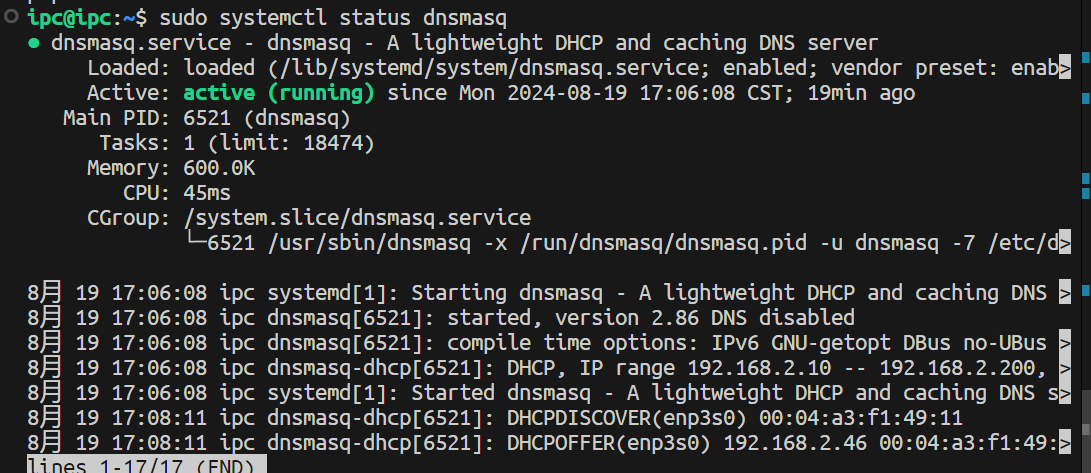
  • 可以查看dnsmasq的日志查看是否有DHCP请求

  • picture 0

使用命令行连接WiFi

  • 使用sudo wpa_cli
  • 使用如下命令连接WiFi
    scan
    scan_results
    add_network
    set_network 0 ssid "Your_SSID"
    set_network 0 psk "Your_Password"
    enable_network 0
  • 以上set_network之后的数字可以修改,保持统一即可

使用忙等待和睡眠结合实现节约CPU的同时保证精确定时

  • 单纯使用忙等待可以实现较高精度的定时,但是会导致CPU占用率升高,因此需要将忙等待和睡眠结合,让出CPU给其他进程使用,需要的时候再上处理机运行
  • 代码
    void* threadRT(void*)
    {
    // setThreadRT(98);
    FILE* fp;
    fp = fopen("log.txt", "w");
    uint64_t prev = get_us();
    uint64_t cur;
    while(1)
    {
    usleep(1500);
    while(get_us() - prev < 2500UL){}
    cur = get_us();
    fprintf(fp, "%lu,", cur-prev);
    prev = cur;
    }
    }
  • 将线程设置为实时线程

    纯忙等测试

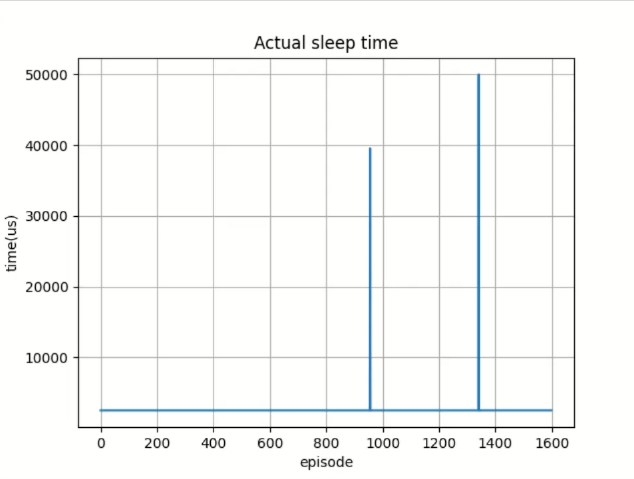
    • 除了小部分误差很大的极端位置之外,运行时间极为稳定
    • picture 8
    • 大部分误差在50000微秒左右
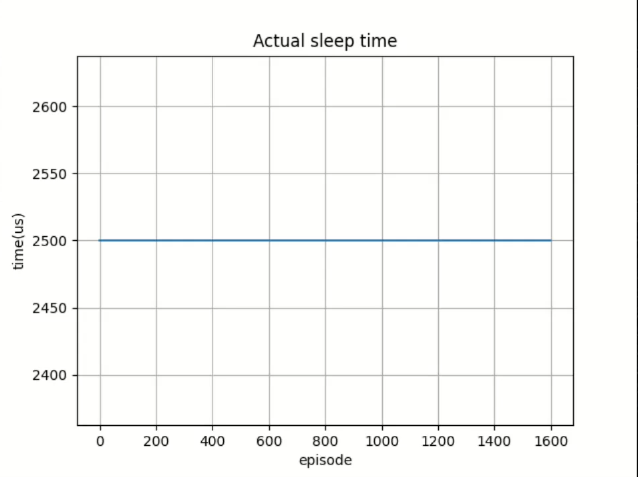
    • 将上述位置除去之后,发现剩余的时间几乎不发生任何变化
    • picture 9
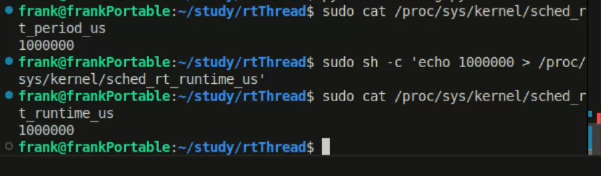
  • 推测是是实时线程的sched_rt_runtime_us设置为950000导致的
  • sched_rt_runtime_us设置为1000000之后,测试结果十分稳定
    • picture 12
    • picture 13

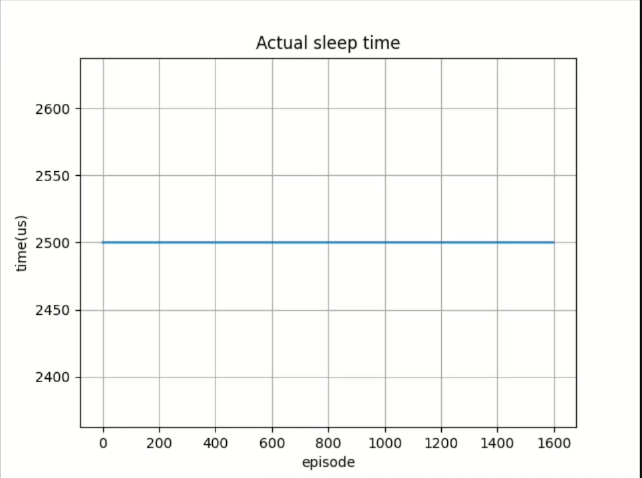
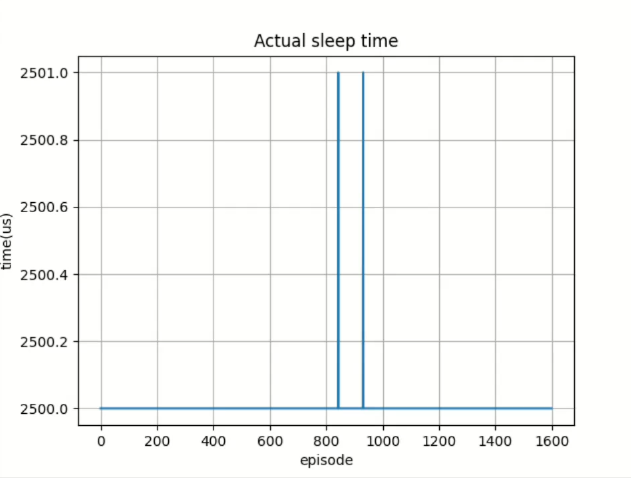
引入usleep节省CPU占用

  • usleep设置为1500的情况

    • picture 10
    • 可见误差最大不超过1微秒
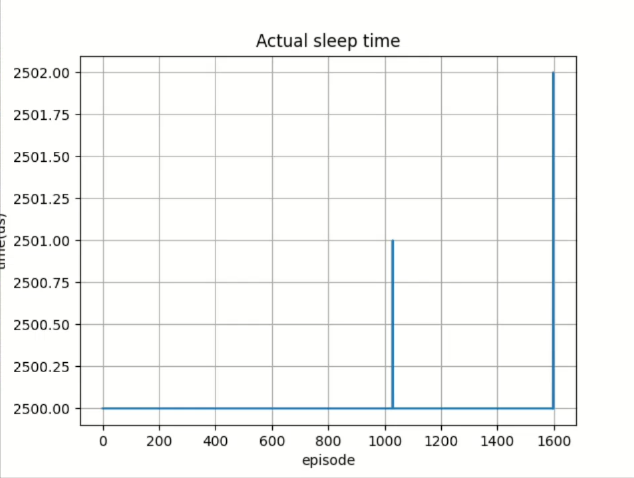
  • usleep设置为2000

    • picture 11
    • 可见误差最大不超过2微秒
    • 而且在1600次测试中只发生了不超过三次
  • 注意上述测试不能在虚拟机完成,必须在物理机完成

  • 使用VMWare安装可插拔物理机教程

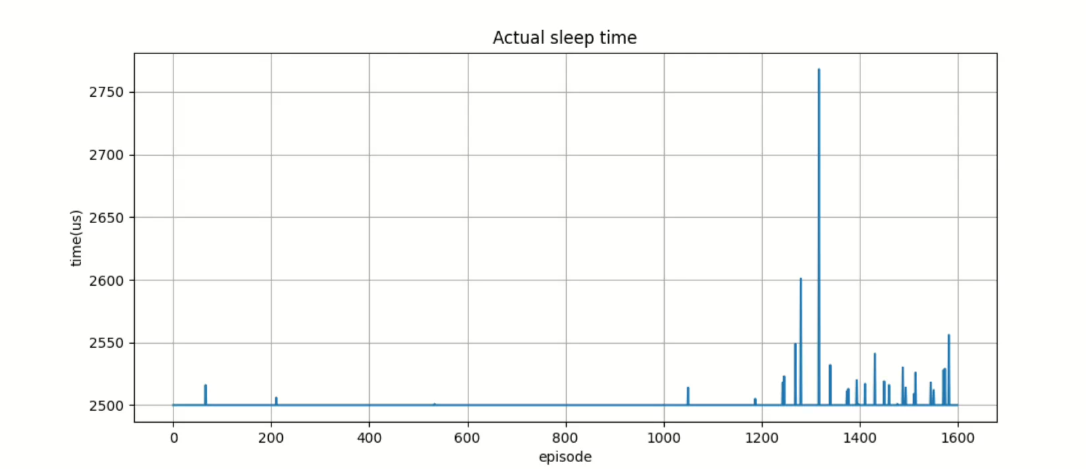
不设置为实时线程的情况

  • 不设置为实时线程的时候,线程大体定时是准确的,但是容易受到外界打扰,外界有操作的时候会导致进程延迟
  • picture 14

解决python无法import当前目录下的某些在文件夹中的文件中的内容的问题

  • 比如我此时有一个目录是
    pyTest/

    ├── env/
    │ └── c.py # 文件 c.py 中定义了类 C

    └── m/
    └── main.py # 文件 main.py 尝试从 env.c 导入类 C
  • 但是我在pyTest目录下执行的时候遇到报错
    • picture 0

      解决方法

  • ~/.bashrc中添加一段环境变量,将当前的文件之形目录添加到pythonpath
    • 末尾添加export PYTHONPATH=$PYTHONPATH:/home/frank/Desktop/pyTest
    • 然后source ~/.bashrc即可正常运行
    • picture 1

在命令行循环显示一个内容而不向下叠加

  • 使用curses.wrapper包裹工作函数
  • 工作函数需要接受一个参数stdscr

    stdscr的用法

  • stdscr.addstr(y, x, str, curses.color_pair)
  • 第一个参数是行数,第二个是列数,第三个是颜色对
    # 定义
    curses.start_color()
    curses.init_pair(1, curses.COLOR_WHITE, curses.COLOR_BLACK)
    bold = curses.A_BOLD
    # 使用
    stdscr.addstr(y, x, "****", curses.color_pair(1) | bold)

获取CPU核GPU信息

  • 使用psutilpynvml
  • 具体参考如下用例

用psutil的process_iter获取CPU占用排名靠前的进程

def get_top_cpu_processes():
processes = psutil.process_iter(['pid', 'name', 'cpu_percent'])
top_processes = sorted(processes, key=lambda p: p.info['cpu_percent'], reverse=True)[:15]
return top_processes

完整示例

import psutil
import time
import curses
from pynvml import *

def get_top_cpu_processes():
processes = psutil.process_iter(['pid', 'name', 'cpu_percent'])
top_processes = sorted(processes, key=lambda p: p.info['cpu_percent'], reverse=True)[:15]
return top_processes

def get_system_stats():
cpu_usage = psutil.cpu_percent(interval=1)
cpu_core_usages = psutil.cpu_percent(interval=1, percpu=True)
memory_info = psutil.virtual_memory()
memory_usage = memory_info.percent

# 获取CPU频率
cpu_freq = psutil.cpu_freq()

return cpu_usage, cpu_core_usages, memory_usage, cpu_freq

def get_gpu_stats():
nvmlInit()
device_count = nvmlDeviceGetCount()
gpu_stats = []
for i in range(device_count):
handle = nvmlDeviceGetHandleByIndex(i)
gpu_name = nvmlDeviceGetName(handle)
gpu_memory = nvmlDeviceGetMemoryInfo(handle)
gpu_utilization = nvmlDeviceGetUtilizationRates(handle)
gpu_temp = nvmlDeviceGetTemperature(handle, NVML_TEMPERATURE_GPU)
gpu_stats.append({
'name': gpu_name,
'memory_used': gpu_memory.used / 1024**3, # Convert to MB
'memory_total': gpu_memory.total / 1024**3, # Convert to MB
'utilization': gpu_utilization.gpu,
'temperature': gpu_temp
})
nvmlShutdown()
return gpu_stats

def draw_bar(stdscr, y, width, percent, color_pair, color_inv):
bar_length = int(width * (percent / 100))
bar = ' ' * bar_length
stdscr.addstr(y, 0, bar, curses.color_pair(color_pair) | curses.A_BOLD)
stdscr.addstr(y, bar_length, '|' * (width - bar_length), curses.color_pair(6))
stdscr.addstr(y, width, '|', curses.color_pair(color_inv))

def draw_rect(stdscr, y: int, x: int, width: int, max_width: int, color_pair, color_inv):
bar = ' '*width
stdscr.addstr(y, x, bar, curses.color_pair(color_pair) | curses.A_BOLD)
stdscr.addstr(y, width+x, '|' * (max_width - width), curses.color_pair(6))
stdscr.addstr(y, max_width+x, '|', curses.color_pair(color_inv))

def display_stats(stdscr):
curses.curs_set(0) # Hide cursor
stdscr.nodelay(1) # Non-blocking input

# Initialize colors
curses.start_color()
curses.init_pair(1, curses.COLOR_WHITE, curses.COLOR_BLACK)
curses.init_pair(2, curses.COLOR_RED, curses.COLOR_BLACK)
curses.init_pair(3, curses.COLOR_WHITE, curses.COLOR_BLACK)
curses.init_pair(4, curses.COLOR_GREEN, curses.COLOR_BLACK)
curses.init_pair(5, curses.COLOR_BLACK, curses.COLOR_WHITE)
curses.init_pair(6, curses.COLOR_BLACK, curses.COLOR_BLACK)
curses.init_pair(7, curses.COLOR_BLACK, curses.COLOR_YELLOW)
curses.init_pair(8, curses.COLOR_BLACK, curses.COLOR_GREEN)
curses.init_pair(9, curses.COLOR_YELLOW, curses.COLOR_BLACK)
curses.init_pair(10, curses.COLOR_GREEN, curses.COLOR_BLACK)
curses.init_pair(11, curses.COLOR_BLACK, curses.COLOR_CYAN)
curses.init_pair(12, curses.COLOR_CYAN, curses.COLOR_BLACK)

bold = curses.A_BOLD


# f = open("monLog.txt", "w")
while True:
height, width = stdscr.getmaxyx()
max_width = width-10
cpu_usage, cpu_core_usages, memory_usage, cpu_freq = get_system_stats()
gpu_stats = get_gpu_stats()

stdscr.clear()
stdscr.addstr(0, int((max_width-22)/2), "System Monitoring Tool", curses.color_pair(5) | bold)

stdscr.addstr(1, 0, "■ CPU Usage:", curses.color_pair(1) | bold)
stdscr.addstr(1, int(max_width/2), "%d"%cpu_usage + "%", curses.color_pair(1) | bold)
# f.write(str(int((int(max_width/2)-12)*cpu_usage/100))+"\n")
# f.write("cpu usage: %d\n" % cpu_usage)
# f.flush()
draw_rect(stdscr, 1, 12, int((int(max_width/2)-13)*cpu_usage/100), int(int(max_width/2)-13), 11, 12)
# draw_bar(stdscr, 3, max_width, cpu_usage, 7, 9)


line = 3
id = 0

while id < len(cpu_core_usages):
stdscr.addstr(line, 0, f"{cpu_core_usages[id]:.0f}", curses.color_pair(1))
draw_rect(stdscr, line, 3, int((max_width-12)/4*cpu_core_usages[id]/100), int((max_width-12)/4), 11, 12)
id+=1
stdscr.addstr(line, int((max_width-12)/4)+4, f"{cpu_core_usages[id]:.0f}", curses.color_pair(1))
draw_rect(stdscr, line, int((max_width-12)/4)+7, int((max_width-12)/4*cpu_core_usages[id]/100), int((max_width-12)/4), 11, 12)
id+=1
stdscr.addstr(line, int((max_width-12)/4)*2+8, f"{cpu_core_usages[id]:.0f}", curses.color_pair(1))
draw_rect(stdscr, line, int((max_width-12)/4)*2+11, int((max_width-12)/4*cpu_core_usages[id]/100), int((max_width-12)/4), 11, 12)
id+=1
stdscr.addstr(line, int((max_width-12)/4)*3+12, f"{cpu_core_usages[id]:.0f}", curses.color_pair(1))
draw_rect(stdscr, line, int((max_width-12)/4)*3+15, int((max_width-12)/4*cpu_core_usages[id]/100), int((max_width-12)/4), 11, 12)
id+=1
line+=1
# line += 1
stdscr.addstr(line, 0, "■ Memory Usage:", curses.color_pair(3) | bold)
stdscr.addstr(line, int(max_width/2), f"{memory_usage:.2f}%", curses.color_pair(3) | bold)
line+=1
draw_bar(stdscr, line, max_width, memory_usage, 7, 9)
line+=1
stdscr.addstr(line, 0, "-"*(max_width), curses.color_pair(1) | bold)
line+=1
for i, gpu in enumerate(gpu_stats):
stdscr.addstr(line, 0, f"■ GPU {i} ({gpu['name']}):", curses.color_pair(2) | bold)

stdscr.addstr(line + 1, 0, " Memory Usage:", curses.color_pair(4))
stdscr.addstr(line + 1, int(max_width/2), f"{gpu['memory_used']:.2f} GB / {gpu['memory_total']:.2f} GB", curses.color_pair(4))
draw_bar(stdscr, line + 2, max_width, (gpu['memory_used'] / gpu['memory_total']) * 100, 8, 10)

stdscr.addstr(line + 3, 0, " Utilization:", curses.color_pair(4))
stdscr.addstr(line + 3, int(max_width/2), f"{gpu['utilization']}%", curses.color_pair(4))
draw_bar(stdscr, line + 4, max_width, gpu['utilization'], 8, 10)

stdscr.addstr(line + 5, 0, f" Temperature: {gpu['temperature']}°C", curses.color_pair(4))
line += 7

# 获取CPU占用排名前五的进程信息
top_processes = get_top_cpu_processes()
# 跳过第一个system Idle process
top_processes = top_processes[1:]
# 显示CPU占用排名前五的进程信息
line -=1
# 确定进程名称和PID的最大长度
max_name_length = max(max(len(p.info['name']) for p in top_processes), 20)
max_pid_length = len(str(max(p.info['pid'] for p in top_processes)))+10

# 显示CPU占用排名前五的进程信息
for i, process in enumerate(top_processes):
if line >= height:
break
# 格式化字符串以确保对齐
process_info = f"{process.info['name'].ljust(max_name_length)} PID: {process.info['pid']:<{max_pid_length}} - CPU: {process.info['cpu_percent']}%"
if line < height: # 确保不会超出屏幕边界
stdscr.addstr(line, 0, process_info, curses.color_pair(1) | bold)
line += 1


stdscr.refresh()

# Wait for 1 second before updating the stats
time.sleep(0.5)

# Check if user pressed 'q' to quit
if stdscr.getch() == ord('q'):
break

if __name__ == "__main__":
curses.wrapper(display_stats)
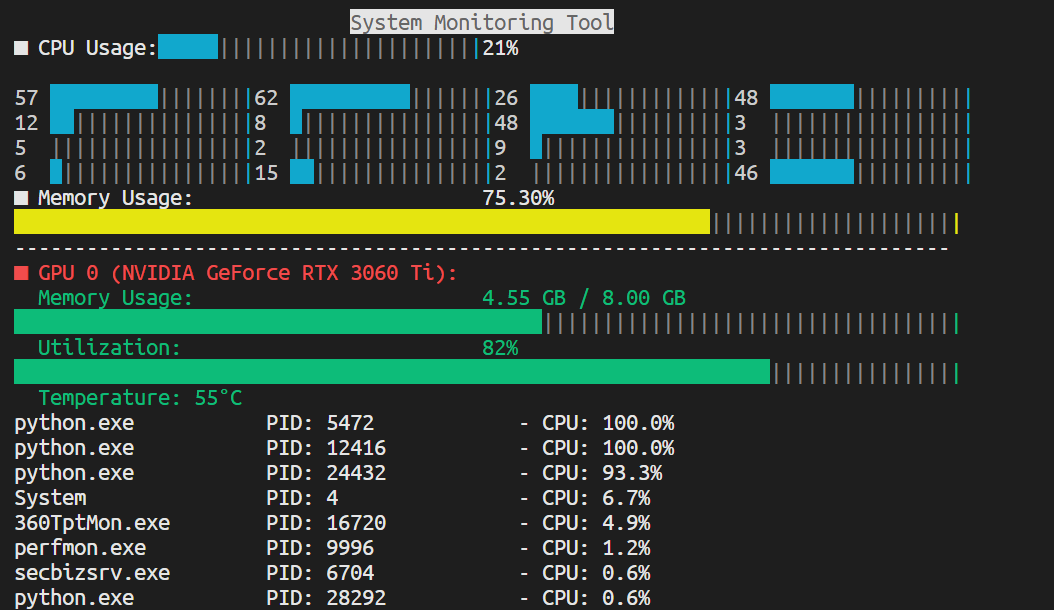
  • 效果
    • picture 2

使用ssh远程另一台电脑

  • 另一台电脑的22号端口需要可以访问

  • 安装OpenSSH服务器:

    • 打开 设置 (Settings)。
    • 选择 应用 (Apps)。
    • 点击 可选功能 (Optional features)。
    • 选择 添加功能 (Add a feature)。
  • 以管理员身份运行命令行,执行Start-Service sshd

  • 执行Set-Service -Name sshd -StartupType 'Automatic'允许开机自启动

  • 一般需要关闭相关防火墙等

  • 在服务端电脑执行ssh <user>@<ip>

如何在命令行开启一个不依赖于命令行存在的进程

  • 一般的进程在自己依附的命令行被关闭之后就无法继续执行了
    • 会导致使用远程ssh命令行创建的进程在连接断开之后停止运行
  • 需要使用Start-Process命令结合-WindowStyle Hidden参数
  • 一个示例powershell脚本(包括传递命令行参数的部分要写成一个字符串,否则无法传递)
    param (
    [string]$S,
    [string[]]$Arg
    )

    # Conda 环境路径
    $condaEnvPath = "D:\anaconda\envs\torchGPU\python.exe"

    # 获取当前目录
    $currentDirectory = Get-Location


    # 完整脚本路径
    $scriptFullPath = Join-Path -Path $currentDirectory -ChildPath $S

    # 检查脚本是否存在
    if (-Not (Test-Path -Path $scriptFullPath)) {
    Write-Host "Error: Script '$scriptFullPath' does not exist." -ForegroundColor Red
    exit 1
    }
    else {
    Write-Host "Process file '$scriptFullPath'found!"
    Write-Host "Running $condaEnvPath in $currentDirectory"
    }

    # 输出文件路径
    $outputFilePath = Join-Path -Path $currentDirectory -ChildPath "output.txt"
    $errorFilePath = Join-Path -Path $currentDirectory -ChildPath "error.txt"

    # 构建参数字符串
    $argumentsString = "$scriptFullPath " + ($Arg -join ' ')

    Write-Host "'$argumentsString'"

    # 启动进程并重定向输出
    $process = Start-Process -FilePath $condaEnvPath -ArgumentList $argumentsString `
    -RedirectStandardOutput $outputFilePath `
    -RedirectStandardError $errorFilePath `
    -WindowStyle Hidden `
    -PassThru `
    -WorkingDirectory $currentDirectory
    # 输出进程ID
    Write-Host "Process ID: $($process.Id)"

    如何管理进程

  • 查看Get-Process -Id <ID>
  • 停止Stop-Process -Id <ID>